


Online courses often contain valuable learning materials, including presentations, PDF documents, written lessons, diagrams, images, and recorded explanations. While these resources provide useful information, presenting everything through text and static documents may not always create the most engaging learning experience.
Training videos offer another way to communicate the same information. They combine visuals, narration, demonstrations, and examples to make lessons easier to follow. For businesses, educational institutions, and online course creators, converting existing learning materials into videos can also help make training more accessible across different devices and learning environments.
However, creating videos from existing course materials involves more than simply recording a presentation. The information needs to be organized, simplified, and presented in a format that makes sense visually.
AI-powered content creation and editing tools are making this process easier. They can help transform written lessons into scripts, turn visual resources into video content, generate supporting footage, and simplify editing. This allows educators and training teams to create useful learning videos without rebuilding every lesson from scratch.
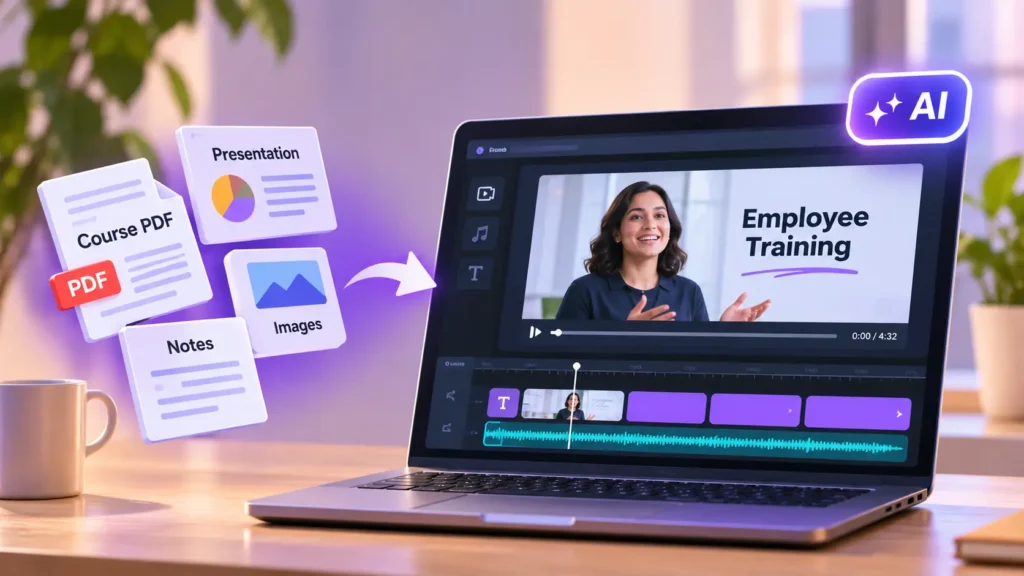
Why Convert Online Course Materials Into Training Videos?
Traditional course materials are often designed for reading and reference. They may contain detailed explanations, step-by-step instructions, diagrams, and important information that learners need to understand.
However, some concepts are easier to explain through demonstrations and visual examples. For instance, a software tutorial may be difficult to follow through written instructions alone, while a screen recording showing each step can make the process much clearer.
Training videos also give learners more flexibility. They can pause a lesson, revisit a particular section, or watch an explanation again whenever they need it.
For organizations, video-based training makes it easier to distribute consistent information across departments and locations. Instead of conducting the same introductory session repeatedly, training teams can prepare videos that employees can access whenever required.
Identify Which Course Materials Can Be Converted Into Videos
Before creating a video, review the existing course content and decide which materials would benefit most from a visual presentation.
Not every document needs to become a video. Some information is better presented through downloadable guides or reference documents, while other topics become easier to understand through narration, demonstrations, and visual explanations.
For example, a course about workplace safety could use diagrams to explain potential hazards, followed by a video demonstrating the correct safety procedures. Similarly, a software training module could turn written instructions into a screen-recorded walkthrough.
Start by identifying lessons that contain complex explanations, processes, practical demonstrations, or information that learners frequently need help understanding.
This helps you decide which parts should become videos and which should remain available as written resources.
How to Turn Course Materials Into Training Videos
Once you have identified the right content, the next step is to organize it into a video production process. The following approach helps transform existing educational resources into structured lessons.
1. Organize the Learning Material
Start by collecting the course materials you want to convert. These may include PDF files, presentations, written lessons, photographs, diagrams, screenshots, and existing recordings.
Review the content and identify the main learning objectives. A single document may contain several topics, so dividing it into smaller lessons can make the resulting videos easier to understand.
For example, a lengthy employee training document about customer service could be divided into separate videos covering communication skills, handling complaints, customer interactions, and problem resolution.
This also makes it easier to update individual lessons later without recreating the entire training program.
2. Convert Written Lessons Into Video Scripts
Once the content is organized, prepare a script for each video.
Written course materials often contain detailed explanations that work well in documents but may sound unnatural when read aloud. Video scripts should communicate the same information using clear language and a logical sequence.
Start with a brief introduction explaining what the lesson covers. Follow it with the main explanation, relevant examples, and a short conclusion that reinforces the important points.
For example, a written lesson explaining how to use a project management application can become a script that introduces the interface, demonstrates important features, and explains how employees can complete common tasks.
AI writing assistants can help summarize lengthy documents, organize information, and prepare initial scripts. However, educators should review the output to ensure that important details remain accurate and that the explanation matches the learning objectives.
3. Create Visuals From Existing Course Materials
Visuals help make training videos more engaging and easier to follow. Instead of relying entirely on narration, use the images, diagrams, screenshots, and presentation slides already available in your course materials.
For example, a training module about workplace procedures may include diagrams explaining different steps. These can be incorporated into the video alongside narration to help learners understand the process.
Static images can also become more dynamic through simple animation or use invideo’s free image-to-video AI tool; it lets you describe specific movements, choose from multiple AI video models, and maintain visual consistency, products, and brand details across generated clips. A photograph of a machine, for instance, could be turned into a short visual sequence that introduces its different components or demonstrates a particular concept.
The important thing is to make sure that the visuals support the lesson rather than distract from it. Use diagrams, screenshots, and generated scenes where they make an explanation easier to understand.
4. Add Narration and Voiceovers
Narration helps connect the different visual elements and provides learners with additional explanations.
You can record an instructor explaining the lesson or use AI-generated voiceovers when recording is not practical. The narration should sound natural, maintain a consistent pace, and explain what viewers are seeing.
For software demonstrations, narration can guide learners through individual actions. In a workplace training video, it can explain safety procedures or highlight important instructions while relevant footage appears on screen.
Make sure the voiceover matches the visuals. If the narration explains a particular step, the corresponding screenshot or demonstration should appear at the right moment.
5. Combine Everything Through Video Editing
After preparing the script, visuals, and narration, bring the different elements together through editing.
This is where presentations, images, screen recordings, voiceovers, and supporting footage become a complete training video. Arrange them in a logical sequence, remove unnecessary sections, adjust timing, and add transitions where they help the lesson flow naturally.
For example, invideo editor provides a browser-based editing environment with AI assistance and an editable multitrack timeline. Training teams can arrange recordings, refine clips, add captions, adjust audio, and make manual changes while keeping the entire project editable.
This is particularly useful when course materials need regular updates. Rather than rebuilding a complete video, editors can revise specific sections and adjust the sequence to reflect new information.
6. Add Captions and Supporting Text
Captions make training videos easier to follow, particularly when learners are watching without sound or need additional support understanding spoken explanations.
AI-assisted transcription can help generate subtitles from narration and recorded lessons. Review the generated text for technical terms, names, and important instructions before publishing.
You can also use short titles, labels, and on-screen instructions to highlight important information. For example, a software tutorial may display the name of a feature while the instructor demonstrates how to access it.
Avoid placing too much text on the screen. The purpose of captions and labels is to support the explanation, not reproduce the entire course document.
7. Review and Publish the Training Videos
Before publishing, watch each video from beginning to end and check whether it communicates the intended lesson.
Make sure the narration matches the visuals, the instructions are accurate, and the video does not contain unnecessary pauses or confusing transitions. Check audio clarity, caption timing, and the readability of any text appearing on screen.
It is also useful to test the video on different devices. Employees and students may watch training content on desktops, tablets, or mobile phones, so important information should remain visible across screen sizes.
Once the videos are ready, organize them into lessons or modules and make them available through your learning management system, company training portal, or online course platform.
Different Types of Training Videos You Can Create From Course Materials
The type of video you create should depend on the subject and how learners are expected to use the information.
Explainer Videos
Explainer videos are useful for introducing concepts, processes, and theoretical subjects. Written lessons can be converted into short scripts supported by diagrams, illustrations, and narration.
Software Demonstration Videos
Existing tutorials and software documentation can become screen-recorded demonstrations. These videos show learners exactly where to click, which features to access, and how to complete specific tasks.
Employee Onboarding Videos
HR documents, company presentations, and internal guidelines can be converted into onboarding lessons covering workplace policies, team responsibilities, company culture, and everyday processes.
Safety and Compliance Training Videos
Safety procedures and compliance documents often contain important instructions that employees need to understand clearly. Demonstrations, diagrams, and supporting footage can help communicate these requirements more effectively.
Product Training Videos
Product manuals, feature descriptions, and demonstration materials can become instructional videos that explain how products work and how users should operate them.
Common Challenges When Converting Course Materials Into Videos
One challenge is deciding how much information to include. Trying to fit an entire chapter into a single video can make the lesson difficult to follow. Breaking the material into focused lessons generally creates a better learning experience.
Another challenge is maintaining accuracy. AI-generated scripts and visuals should always be reviewed, particularly when the training covers technical processes, safety requirements, or company policies.
Visual consistency also matters when creating a collection of training videos. Different fonts, colors, narration styles, and presentation formats can make a course feel disconnected. Establishing basic design and presentation guidelines helps keep the lessons consistent.
Finally, remember that video should complement other learning resources rather than replace every document or reference guide. Learners may still need written materials to revisit detailed instructions, definitions, and supporting information.
Final Thoughts
Converting online course materials into training videos is a practical way to make educational content more engaging and accessible. Existing documents, presentations, images, and recordings can provide the foundation for creating structured video lessons without starting every project from scratch.
AI can simplify several parts of the process, from preparing scripts and generating visuals to organizing footage and editing the final video. However, the quality of the learning experience still depends on accurate information, clear explanations, and thoughtful visual presentation.
By combining existing course resources with AI-assisted creation and editing, educators and organizations can build training videos that help learners understand information more easily and revisit important lessons whenever they need them.
Frequently Asked Questions
1. How can I convert a PDF into a training video?
Start by reviewing the PDF and identifying its main topics. Turn the important information into a video script, add relevant diagrams or images, record or generate narration, and combine the elements through video editing.
2. Can AI turn presentations into training videos?
Yes. AI-powered content creation tools can help transform presentation content into video scripts, narrated lessons, and visual sequences. The slides can also be combined with voiceovers, animations, and supporting footage.
3. Can I turn existing images into training videos?
Yes. Existing photographs, diagrams, and illustrations can be included in a video with narration, transitions, and text. Image-to-video techniques can also add movement to selected static visuals when a more dynamic presentation is useful.
4. How long should an online training video be?
There is no fixed duration. A focused lesson should be long enough to explain its subject without adding unnecessary information. Dividing lengthy topics into smaller videos can make learning easier and help employees find specific lessons.
5. Can AI help edit training videos?
Yes. AI-assisted editing can help organize footage, remove unnecessary sections, generate captions, and prepare different versions of training content. Editors can review the results and make manual adjustments before publishing.
6. What materials can be used to create training videos?
You can use PDF documents, presentations, written lessons, diagrams, photographs, screen recordings, existing videos, and voice recordings. The best combination depends on the subject and the learning objectives.
7. How can businesses keep training videos updated?
Keep the original scripts, source documents, and editable video projects organized. When information changes, update the relevant sections and revise the corresponding video rather than recreating the entire training program.